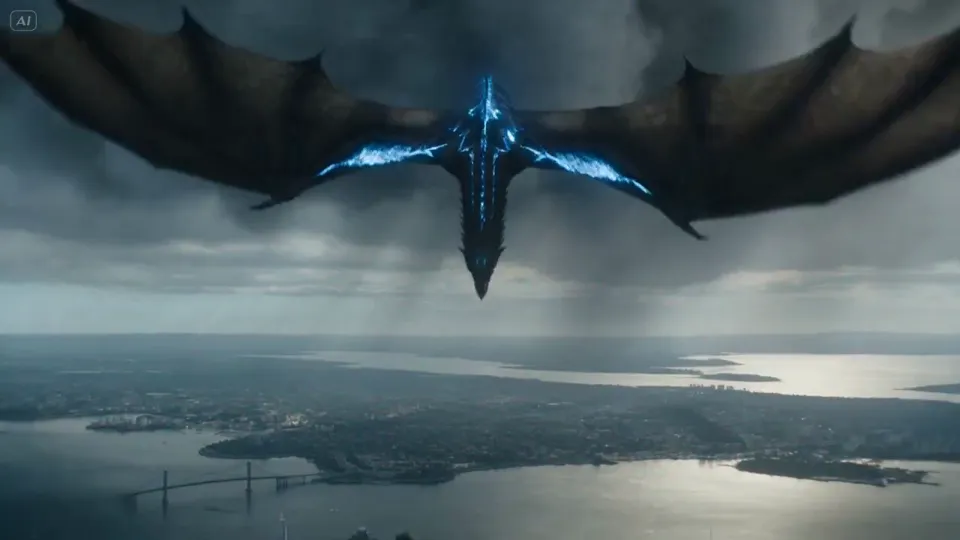
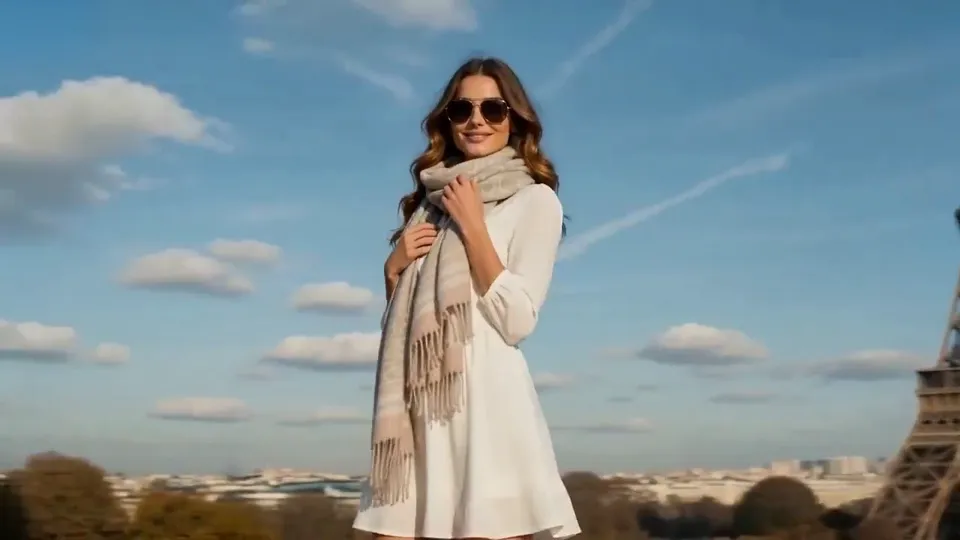
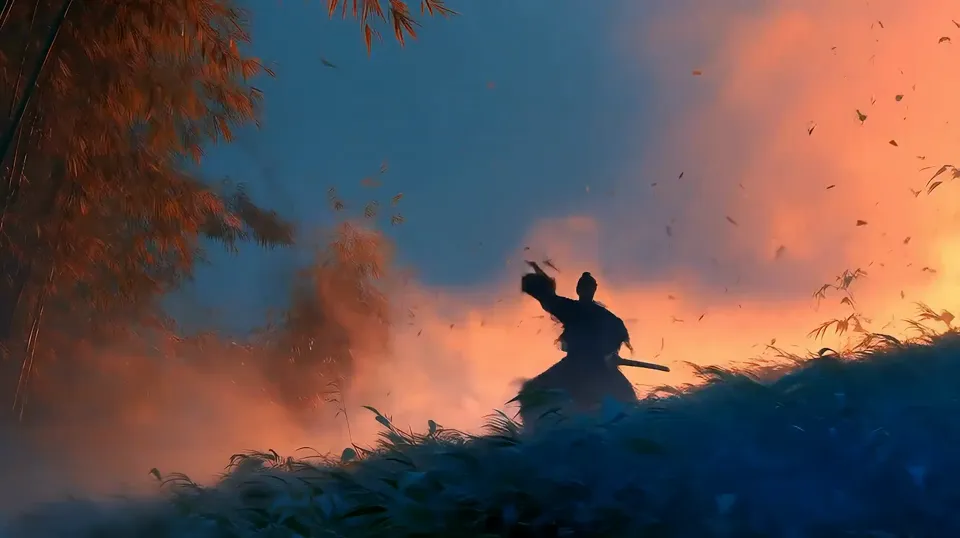
Gemini Omni 1.1 Flash is Google’s multimodal model for AI video generation and editing. Direct your scenes with up to 10 seconds of video context, first and last frame control, 360p drafts, video references and output up to 4K.
Estimated costLoading prices…
Gemini Omni 1.1 Flash · Imagine freely. Create effortlessly.
Gemini Omni 1.1 Flash: from references to a complete shot
Bring prompts, character images and video references into one creative direction. Animate a still image, plan an opening and ending, or build on an existing scene by refining movement, lighting and camera language.
1
Extend scenes with video context
Provide an existing clip and describe what should happen next, giving characters, environments and story direction a continuous visual reference. The model supports up to 10 seconds of scene-extension context; video input lets the model determine output duration.
2
Control the opening and ending with frames
Use a first frame to establish the subject, product and setting, then a last frame to define the destination. Combine them with motion and camera instructions for product transitions, character entrances and loops.
3
Combine image and video references
Images can guide appearance, clothing, setting and style, while video can guide motion and camera rhythm. Describe each reference’s role so Gemini Omni can distinguish details to preserve from actions to reinterpret.
4
From 360p drafts to output up to 4K
Explore prompts, movement and framing in 360p, then choose 720p, 1080p or 4K for your next generation. Drafts help compare directions; higher quality helps inspect subjects, materials and settings. Regeneration can change visual details.
Model specifications
Duration
4 / 6 / 8 / 10s
Resolution
360p / 720p / 1080p / 4K
Prompt limit
20,000 characters
Reference images
7
How to generate AI video online
1
Describe the shot and references
Describe the subject, action, setting and camera movement. Explain what each reference image or video should guide.
2
Choose mode, quality and duration
Start with text, first and last frames, or multimodal references. Choose the aspect ratio and available quality, then review the credit estimate.
3
Review results and refine
Open Results to follow progress and view your video. Refine the prompt based on motion, framing and detail before generating another version.
What to create with Gemini Omni 1.1 Flash
Product and social videos
Start from a product image and add viewing angles, lighting changes and camera movement for product clips or vertical social content.
Character stories and scene continuation
Give a character their next action and connect portrait references with existing shots to develop a story clip by clip.
Cinematic shots and visual concepts
Explore pushes, pulls, tracking or orbiting moves in one scene, using short clips to compare atmosphere, composition and pacing.
Help Gemini Omni understand your shot
1
Define one main action
Say who does what and where, then add camera movement and lighting. Avoid packing unrelated actions into a short clip.
2
Separate what stays from what changes
Specify the appearance, clothing or product materials to preserve, alongside the movement, camera or setting to change.
3
Choose output for its purpose
Choose landscape or portrait first, followed by duration and quality. With a video reference, the model determines output duration.
Gemini Omni 1.1 Flash FAQ
Explore creation modes, output settings and credit usage.
What is Gemini Omni 1.1 Flash?
It is Google’s multimodal model for video generation and editing, using prompts, images and video references to guide scenes, subjects and motion, with frame control and output up to 4K.
Can I generate a video from text alone?
Yes. Leave the image slots empty in frame mode, describe your shot, and choose duration, aspect ratio and quality.
Can frame control and multimodal references be used together?
Use the modes separately. Choose frame control for a defined opening and ending; a last frame requires a first frame. Choose multimodal references to combine image and video information.
How should I choose between 360p drafts and 4K video?
Use 360p to explore composition and movement, and 720p, 1080p or 4K for different detail needs. This selects generation quality; it is not a lossless one-click conversion of a draft to 4K.
How long can the generated video be?
Without a video reference, choose 4, 6, 8 or 10 seconds. With video input, the model determines output duration and the manual duration selection does not apply.
How many credits does a video cost?
Credits vary with model, quality, duration, references and task count. Review the estimate in the creation panel before submitting.
 Nano Banana 2.5