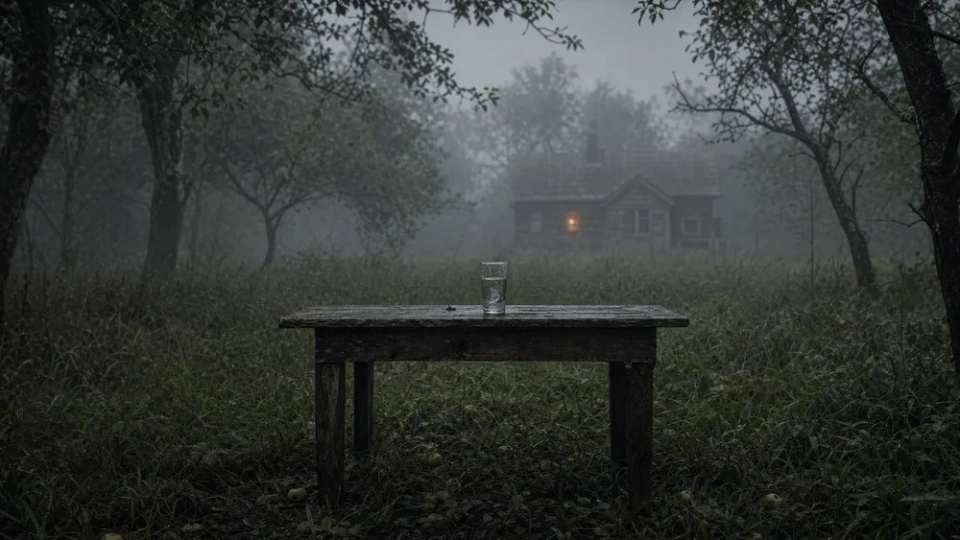
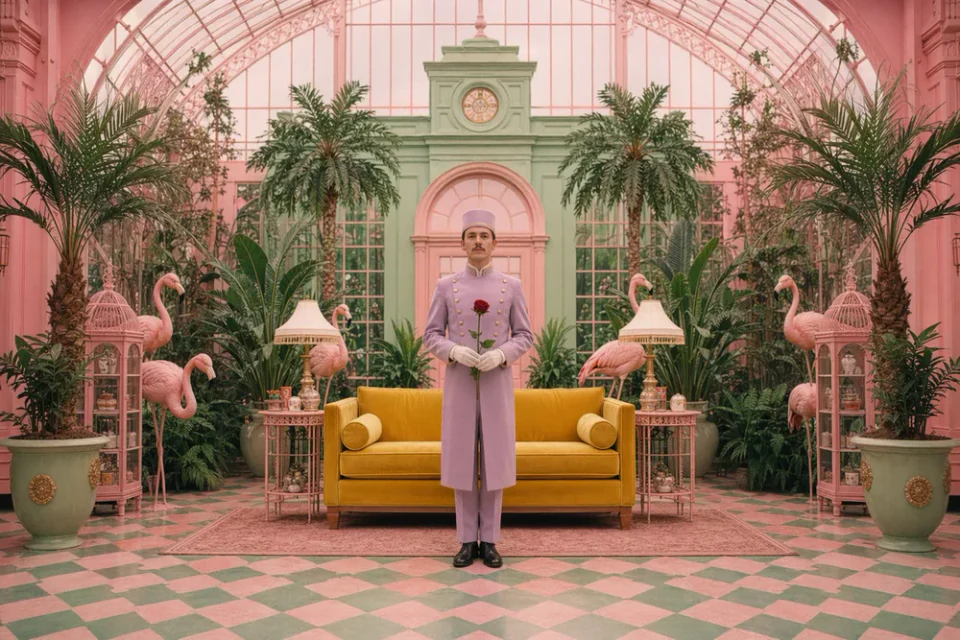
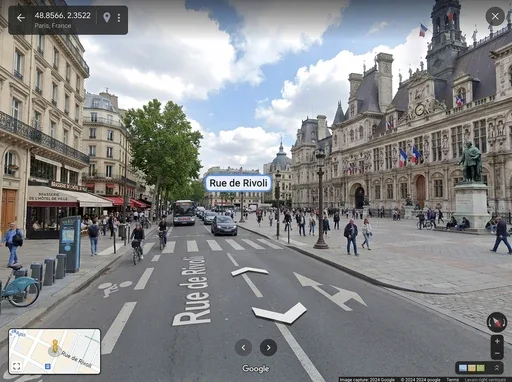
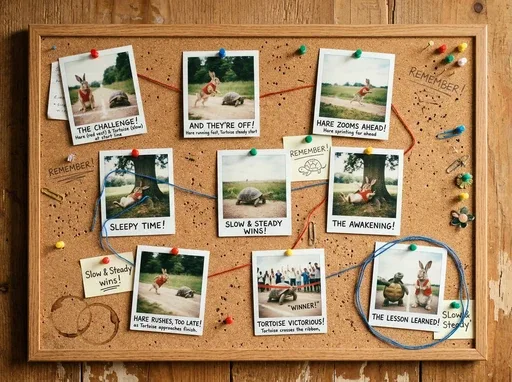
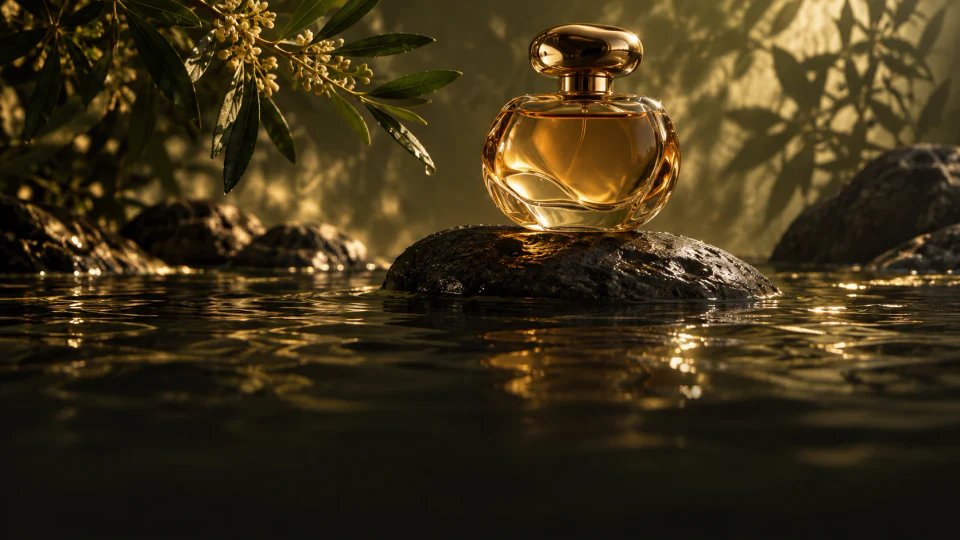
GPT Image 2.5 is an advanced image generation and editing model from OpenAI, designed to deliver clearer visual quality, stronger reference fidelity and more precise refinements. It generates more natural lighting and textures, preserves subjects more consistently, and follows complex visual instructions more accurately across multiple edits.
GPT Image 2.5 maintains stronger consistency across multiple edits and handles complex prompts involving layout, style, text, transparent backgrounds and multiple visual requirements with greater capability.
1
GPT Image 2.5 text-to-image: turn descriptions into visuals
Create product photos, portraits, illustrations and campaign concepts with GPT Image 2.5. Describe the subject, setting, light and materials, then choose an aspect ratio and 1K, 2K or 4K output. A clear brief helps define the composition, from glass reflections to fabric texture and landscape depth.
Upload a portrait or product image to guide GPT Image 2.5 image editing. Identify the facial features, shape, colors and materials to retain, then describe the new background, outfit or viewpoint. With multiple references, explain which image supplies the subject, scene or style to give each input a clear role.
3
Precise image editing: change the elements you choose
Use natural-language instructions to change a background, object, color or text area. For example, ask GPT Image 2.5 to replace a product backdrop while keeping the packaging, logo position and camera angle. Separating what should change from what should stay helps guide focused edits and makes the result easier to review.
4
Multi-turn refinement: build on the previous result
Bring a generated image back as a reference for the next edit. Refine lighting first, then colors, styling or individual elements, stating which earlier changes to keep each time. This GPT Image 2.5 workflow suits campaign variations, product visuals and character concepts that need several rounds of refinement.
5
Complex prompts, poster layouts and in-image text
Combine subjects, spatial relationships, style and exact wording in one structured brief. For a GPT Image 2.5 poster, specify the headline, supporting copy, placement and empty space. Put required text in quotation marks and describe the visual hierarchy, then review spelling and layout in the output.
How to generate images with GPT Image 2.5
Move from a description to a refined image with a clear direction at every step.
1
Describe or add references
Describe the subject, setting, style and intended use. For an existing image, choose editing and add your reference.
2
Choose model and resolution
Choose a version, aspect ratio and resolution, then review the credit cost.
3
Generate and refine
Review the result and refine the details. Save the prompt and settings to build on your idea.
GPT Image 2.5: generation vs editing
Choose for the task you want to complete.
Compare
Text to image
Image editing
Starting point
Enter a visual description
Upload a reference and describe changes
Best for
New compositions, concepts and illustrations
Background changes, focused edits and style exploration
Prompt focus
Subject, setting, layout and light
Details to preserve and details to change
Resolution here
1K, 2K, 4K
1K, 2K, 4K
View credit costs by resolution
Version
Resolution
Credits / image
GPT Image 2.5
1K
15
GPT Image 2.5
2K
25
GPT Image 2.5
4K
40
Creative uses for GPT Image 2.5
Find a starting point for everyday content and larger visual projects.
1
Campaign creative
Develop a layout, lighting and focal point around your next creative brief.
2
Product concepts
Use references to explore backgrounds, materials and camera angles.
3
Contemporary posters
Plan subjects and negative space for the format you intend to publish.
4
Brand visual direction
Set a shared direction through color, shape and scene descriptions.
5
UI and presentation concepts
Translate a complex idea into visual elements with a clear hierarchy.
6
Character and scene illustration
Explore a story through its characters, mood and environment.
GPT Image 2.5 frequently asked questions
Learn about model choices, prompts, references and credit costs.
What is GPT Image 2.5?
GPT Image 2.5 is OpenAI’s image model family for generation and editing from text and images, with improvements in reference fidelity, detail and editing control.
How do I make a focused edit?
Switch to image editing, upload the original and describe the change and details to retain. For example, change only the background lighting while preserving clothing, pose and facial features.
Can GPT Image 2.5 edit several reference images together?
Yes. Image editing here accepts up to 16 reference images. Describe the role of each image, such as subject, product shape, background or visual style, and specify the details to preserve. Follow the upload panel’s file requirements when adding references.
How do Flare and Sunburst fit a GPT Image 2.5 workflow?
Choose Flare or Sunburst below the prompt. Both offer text-to-image and image editing in this workspace. Keep the same prompt and references to compare their results, then choose the version that suits your composition, detail and editing needs. Review the current credit estimate before submitting.
Can GPT Image 2.5 create posters with multilingual text?
You can request posters and other visuals containing text in the prompt. Provide the exact wording, language, position and hierarchy instead of asking for a generic headline. Review characters, punctuation and line breaks in the result, especially for small text or dense layouts.
How should I prompt GPT Image 2.5?
Start with the subject and intended use, then specify composition, light, materials and style. For edits, separate the details to keep from those to change. Put desired in-image text in quotation marks.
Which reference images can I upload?
Use JPG, PNG or WEBP images. Follow the reference count and file size shown in the upload area. Choose clear images and explain the role of each reference in your prompt.
How many credits does an image cost?
Credits depend on version, resolution and image count. The table lists per-image costs, and the generate button shows the total for your task.
How can I edit a generated image?
Download the result and upload it as a reference in image editing, then describe the next change. Save a draft to retain your prompt and settings.
Ready to create your next image with GPT Image 2.5?
 Nano Banana 2.5